Help
Human Handoff
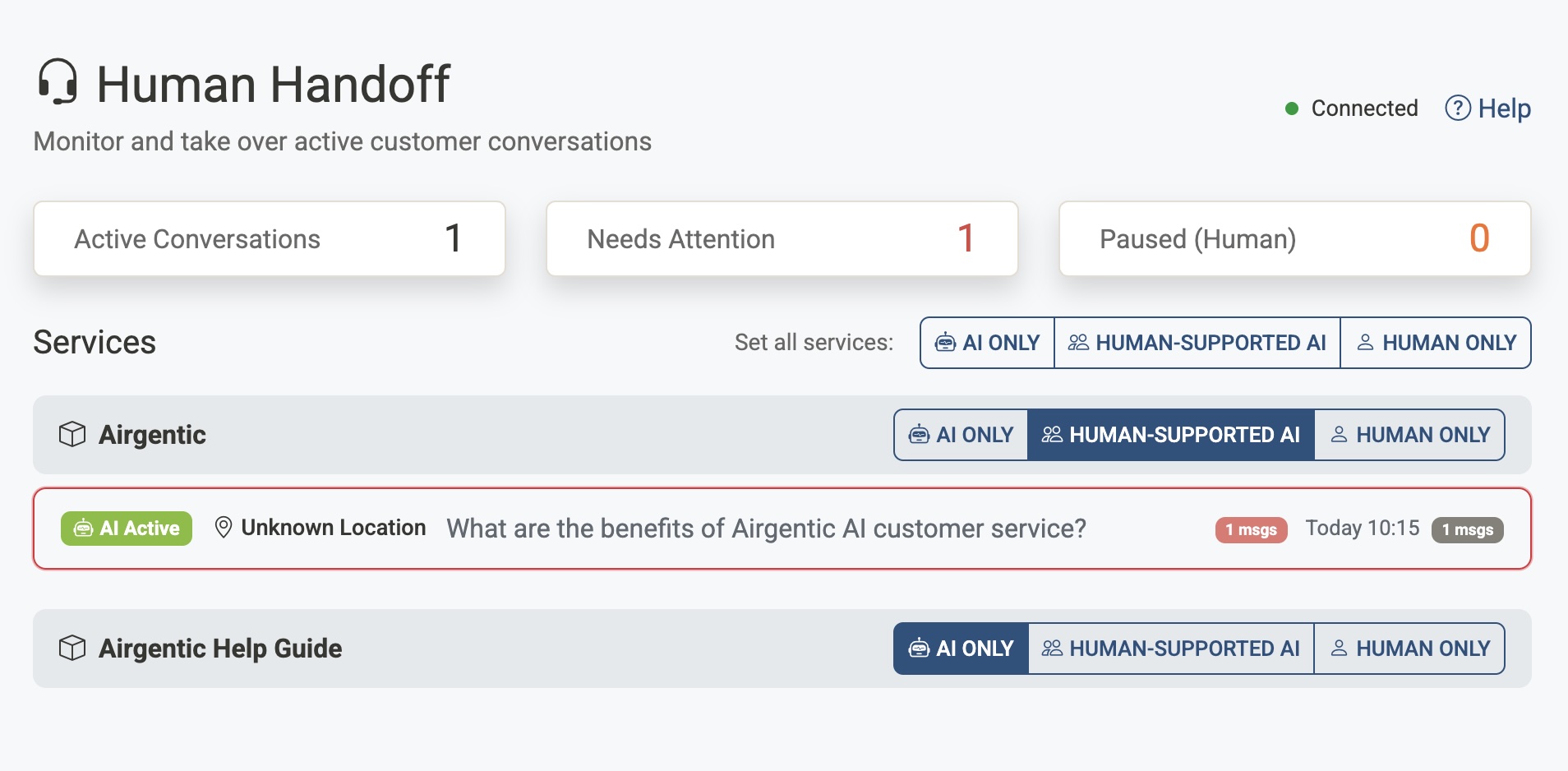
The Human Handoff screen is a contact-centre inbox: you can hold several assigned chats at once, switch between them without notifying the customer, transfer a chat to a colleague, and find recently closed conversations for 48 hours.
The desk is a three-column workspace. The inbox is on the left, the conversation is in the centre, and a Summary and Visitor panel sit on the right. Modes, hours, wait-time colours, and saved replies are configured under Desk settings.
The screen maintains a live connection to the conversation server and updates automatically — you don't need to refresh the page.
Connection and availability
A status indicator in the top-right shows whether the live connection to the server is active:
- Green dot — Connected — Receiving live conversation updates.
- Yellow dot — Connecting — Attempting to establish a connection.
- Red dot — Disconnected — The connection has been lost. The page will attempt to reconnect automatically.
Next to it, Available / Away controls whether you are in the auto-assign pool. Click the agent count to see who is currently available (and who is on the page but Away).
A bell icon turns browser notifications on or off. See Notifications.
Conversation inbox
The left column has two tabs:
| Tab | What it holds |
|---|---|
| Live | Conversations that are still open, grouped into My chats, Queued, and Monitoring. |
| Recent | Closed conversations from the last 48 hours, including threads a visitor reset. Read-only. |
When any conversation needs a person, a red need attention banner appears above the inbox. The same count appears on the browser tab (for example (3) Human Handoff) so you can see it even when the tab is in the background.
Live buckets
| Bucket | What it holds |
|---|---|
| My chats | Conversations assigned to you. You can keep several at once and switch rows without releasing or notifying the customer. |
| Queued | Unclaimed conversations that need a human now: the customer asked for help, the AI flagged a thumbs-down / non-answer / negative sentiment, the service is in Human Only, or a paused chat was returned to the queue. |
| Monitoring | Live chats the AI is still answering. A new Human-Supported conversation starts here. Take over if you want to step in before it escalates. |
Selecting a row opens the transcript. It does not claim or release the conversation. The customer is not notified when you switch chats.
Conversation cards
Each card shows a small service chip plus:
- Opening question — A preview of the first thing the customer asked.
- Location — The customer's detected city and region.
- Time — When the conversation started.
- Message count — The total number of messages exchanged.
- Tags — Compact chips for any conversation tags the claimed agent has applied.
- Wait time — On queued chats (and on your chats with an unread customer message), how long the customer has been waiting for a person.
Wait-time colours
Queued conversations turn amber, then red, as the customer waits for someone to take over. The wait is measured from the customer's last message. The queued bucket count uses the same colours when any chat in that list has gone red.
Admins set those times per service in Desk settings. The defaults are 2 minutes (amber) and 5 minutes (red).
Search, filter, and sort
Above the inbox:
- Search chats — Finds conversations by question, visitor name, location, service, or tag. Type a few words; the list updates as you type.
- Filter — Narrow the list by service (on accounts with more than one), by tag, or to Needs attention only. The filter button shows how many filters are on.
- Sort — Toggle between Longest waiting (the default — oldest waiting chats first in My chats and Queued) and Newest.
Hidden chats stay counted in the need attention banner and the browser-tab badge, so a filtered-out escalation is never silently lost. A line under the toolbar tells you how many chats are hidden; Clear restores the full list. Your search, filters, and sort are remembered in this browser.
Keyboard: with an inbox card focused, Up / Down move between visible cards and Enter or Space opens the conversation. Hidden cards are skipped.
Attention flags
Conversations that need human review are highlighted and display a coloured badge:
| Badge | Trigger |
|---|---|
| Thumbs Down | The customer gave a thumbs-down rating after an AI response. |
| Non-Answer | The AI was unable to answer the customer's question. |
| Negative Feedback | Negative sentiment was detected in the conversation. |
| Help Requested | The customer explicitly requested to speak to a human. |
These conversations also increment the need attention count.
Working a conversation
Click any conversation card to open it in the centre of the desk.
Transcript
Messages are colour-coded by who sent them:
- Customer — White bubble on the left.
- AI Assistant — Soft teal, on the right.
- You / another agent — Navy wash, on the right, labelled with the agent's name.
- System — Centred, italic (for example the notice that a person has joined).
- Internal note — Amber, full width, with a lock. Only agents can see these. See Internal notes.
Each message shows a clock when the time is known (10:22, or Yesterday 16:42 for older turns). When a conversation spans more than one day, a Today / Yesterday / date divider appears between groups of messages. Conversations that started before times were stored simply have no clock on the older turns.
Recent cards are read-only: no composer, Take over, or transfer.
Summary and visitor
When you take over, a Summary card on the right gives one or two sentences so you can get oriented without reading every turn. If the service captures a visitor profile, a Visitor card shows known details (name, programme interest, campus, and so on), plus approximate location, timezone, and language. Structured fields update as the conversation continues; the short bullet snapshot is from when you opened the conversation.
See Visitor Profiles.
Taking over
Click Take over to claim the conversation and pause the AI. In Human-Supported AI the customer sees a notice that a person has joined; in Human Only they do not (they already have a holding notice). Once you have taken over:
- The composer opens under the transcript.
- Generate, revise, insert a saved reply, or type a reply, then click Send (or press Enter).
- Use Shift + Enter for a new line.
- If another agent has already claimed the conversation, Take over shows their name and is disabled.
Writing a reply
The composer sits under the transcript, with a large text area and a toolbar:
| Control | What it does |
|---|---|
| Edit / Preview | Preview shows the reply the way the customer will see it, including markdown links and lists. |
| Generate | Drafts the same answer the AI would have given, without sending it. Ctrl/Cmd+Shift+G does the same. Click again while it is generating to cancel. |
| Clear | Empties the draft. |
| Replies | Inserts a saved reply. |
| Note | Switches the composer to an internal note. |
| Tag | Adds or removes conversation tags. |
| Send | Sends the reply as you. |
If the customer sends another message while you have a draft, a banner asks you to regenerate. The draft is not overwritten automatically.
Generating an AI answer counts toward your subscription quota, even if you edit or discard the draft. Replies you type yourself are not billed. Citations stay in a Sources list under the composer and are not shown in the widget.
Saved replies
Ready-made answers for common questions. After you have claimed a chat:
- Click Replies and pick one, or type
/in an empty composer to open the picker. - Search the list if you have many replies.
- Placeholders are filled in when you insert:
{visitor_name},{agent_name}, and{service_name}.
Admins add and edit the list under Desk settings.
Internal notes
Notes are for your team only. The customer, the AI, and Insights never see them.
- Claim the conversation, then click Note. The composer turns amber.
- Type the note and press Enter (or Send). Escape cancels note mode.
- The note appears in the transcript as an amber, locked message with your name.
Use notes for things like a ticket number, a warning for the next agent, or context you would not put in a customer-facing reply.
Conversation tags
Tags belong to the whole conversation (not each thread) and stay on Insights after the session ends.
- Click Tag, then a suggested tag from the service palette, or type a custom label and press Enter.
- Matching a palette name (or its id) stores the standard tag, so reporting stays clean.
- Only the claimed agent can add or remove tags. Everyone can see the chips on the conversation list.
- Custom tags cannot contain a semicolon. Up to 12 tags, 40 characters each.
Suggested tags are configured per service in YAML (human_handoff.conversation_tags). Custom tags still work when the palette is empty.
When visitor-profile CRM sync is on, the same tags are written to HubSpot (airgentic_conversation_tags) and Marketo (airgenticConversationTags) automatically. Removing every chip clears that field. See Visitor Profiles and CRM.
Hand back, transfer, and return to queue
Once a human has stepped in, the AI stays paused until you explicitly Hand back to AI. Parked My chats, chats returned to Queued, and a customer reconnecting do not unpause the bot.
| Action | When | What the customer sees |
|---|---|---|
| Take over | Queued / unclaimed | In Human-Supported AI, a one-time “A human agent is stepping in…” notice. Nothing in Human Only. |
| Hand back to AI | Mine, Human-Supported AI (two-click confirm) | Existing resume copy. The AI answers the next message. |
| Transfer | Mine | One line naming the colleague, for example “Archie is now helping you.” |
| Return to queue | Mine | Nothing. The chat stays paused and waits in Queued (or auto-assigns to someone with capacity). |
Switching rows, closing the workspace, auto-assign while you are working another chat, and idle time never send a customer message.
Notifications
You do not have to stare at the inbox:
- Sound plays when a conversation needs attention.
- Toast appears at the bottom-right, even if you are on a different page in the admin console.
- Browser tab shows a count, for example
(3) Human Handoff, whenever chats need attention. - Desktop notifications (the bell in the top-right) can alert you when the tab is in the background. The browser will ask permission the first time you turn them on.
Auto-assign still requires the Human Handoff page to be open with Available on. Toasts and desktop notifications tell you something needs attention; they do not put you in the assignment pool.
Related documentation
- Desk settings — Modes, hours, auto-assign, wait-time colours, and saved replies
- User Management — Assign the Agent role for live-support staff
- Visitor Profiles — Structured details shown on the conversation
- Visitor Profiles and CRM — Send profile fields and tags to HubSpot or Marketo
- Playbooks — Per-session hours overlay vs the service-wide Hours control
- Customer Service Insights — Review tagged conversations after the session ends
- Handoff and Escalation — Planning live vs async escalation