Help
Data Sync
Airgentic Help
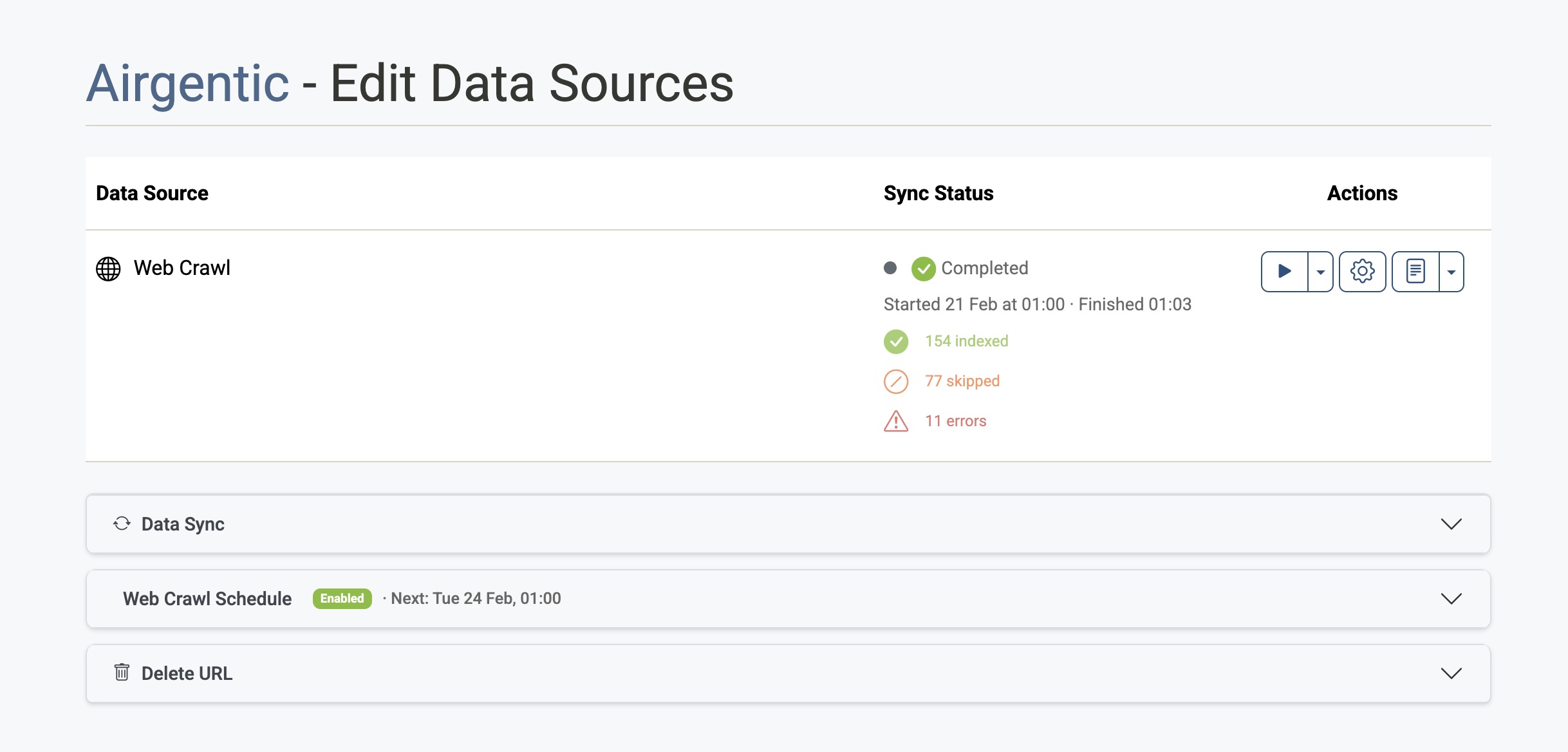
The Data Sources screen shows your data sources (such as Web Crawl), their sync status, and lets you run a sync manually or on a schedule. This guide describes the Data Sync section and how it fits with crawler settings.
What is data sync?
Data sync pulls content from your configured data sources and updates the index used by the AI. For a web crawl data source, that means fetching pages, processing them, and indexing the results so the AI can answer questions from your site.
Where to find it
- Log in to the Airgentic admin console.
- Click the black 'Data Sync' button for the selected service.
You'll see a table of data sources, each with Sync Status and Actions, and below that the Web Crawl Schedule and Delete URL sections.
Upload Documents
If you need to index content that isn't available via web crawl—such as internal PDFs, Word documents, or standalone HTML files—use the Upload Documents button at the top of the page. This opens a dedicated screen where you can drag and drop files, manage uploaded documents, and trigger indexing.
See the Upload Documents guide for full details on supported file types, public vs. secure storage, and how indexing works.
Sync status and actions
In the table at the top of the page:
- Sync Status — Shows whether the last run completed, is running, or failed, and how many items were indexed, skipped, or had errors.
- Play — Start a full sync (crawl and index) on demand. Superusers can use the dropdown to start from a specific stage (e.g. Process HTML, Index Content).
- Gear — Open Crawler settings (seed URLs, crawl scope, image extraction, standard result fields). Configure these before or after a sync.
- Logs — View the main crawl log or, from the dropdown, other logs (HTML processing, indexing, etc.).
Web Crawl Schedule
Below the data sources table, Web Crawl Schedule lets you enable or disable automatic syncs and set the time and days of the week. Times use your local timezone. The next run time is shown in the accordion header when the schedule is enabled.
Crawler settings
To control what is crawled (URLs, scope, images, standard result fields), use the gear icon in the Actions column for the Web Crawl row. That opens the Crawler settings screen (General, Crawl Scope, Image Extraction, Standard Result Fields). Configure crawler settings first if you're adding a new site or changing which pages are included.