Help
The Search Configuration screen controls how pages are categorised in search results and how user queries are interpreted before being sent to the search engine.
The screen is organised into tabs. Use Guide for a quick mental map, Settings for curated results (best bets) and query synonym rules, Categories for result category mappings, Fields for indexed Search Fields, Filters for visitor-facing filter controls, Scopes for search tabs and scope-specific behaviour, and Result Cards for result layouts and field badges. Some advanced tabs, including Preview and Superuser, may be visible only to Airgentic support or superusers.
Search Page URLs
Inline and per-slot search pages use standard, bookmarkable URL parameters so search result pages can be shared.
For example, an existing website search form can submit to /search?query=engineering. Airgentic will read the query from the page URL, then update the URL as the visitor changes scopes, filters, sort order, or pagination.
Default values are omitted from the URL. A bare /search_inline.html is the empty Ask landing (when Ask is enabled), first page, 10 results, and the scope’s default sort. Parameters such as start_rank, num_ranks, sort, scope, and view=ask appear only when they differ from those defaults. The older Funnelback clive parameter is still accepted as an alias for scope.
Search Page Styling
Airgentic search uses one default DOM for new search pages. It includes stable Airgentic classes such as air-search-nav, air-search-facet, and hit-card, along with common search and Bootstrap-style classes such as nav-tabs, nav-item, search-results, search-facet, card, pagination, and page-link.
This makes it easier to reuse an existing search stylesheet from a previous search platform. Airgentic support can add external search stylesheet URLs on the Superuser tab. The Airgentic-managed style.css still loads last, so the Design screen can be used for final overrides.
Result Summary Source
On the Settings tab under Search Presentation, choose which text appears under each result title:
| Option | Behaviour |
|---|---|
| Query snippet, then description | Default. Prefer the Elasticsearch query snippet for contextual matches, then fall back to the page description. |
| Description, then query snippet | Prefer a usable indexed description first (good when body snippets pull messy mid-page content). |
| Description only | Use the description field only. |
This does not change how description is extracted on the Fields tab — it only controls which text the result cards display.
Group Page Versions
On the Settings tab, Group page versions controls whether versions of the same page share one search result.
Some sites publish one page at several URLs that differ only by a query parameter, such as type=wedding on a venue page. Name those parameters under Crawler Settings, then reprocess the site so each version is stored with the others.
Turn Group page versions into one result on to show those versions as one result. Search prefers the URL that leaves the parameter off (the bare page, rather than ?type=wedding). Turn it off to show each page URL separately.
The switch takes effect as soon as you save. It does not change the Indexed Documents counts on the same tab, which stay grouped by page URL. Versions indexed before the parameters were set still appear separately until the site is reprocessed.
Search Ask Tab
The Settings tab can show an optional Ask tab beside the normal search scopes. When enabled, visitors can switch from search results into the service hub and ask a question without leaving the search page.
When Ask is enabled, opening the search page with no query, scope, or filters lands on the Ask tab by default (with the search box and scope tabs still available). URLs that already include a query, a scope (scope, or the older clive alias), or facet filters continue to open the results view. An explicit view=ask parameter always opens Ask.
Submitting a keyword search from the top search box while Ask is open switches to the results view. If the All scope tab is hidden, the leftmost visible results tab is selected (for example Experts).
The Ask tab uses the same service hub configuration and chat agent as the rest of the site. If the chat agent capability is disabled for the search UI, the Ask tab is hidden even if the setting is enabled.
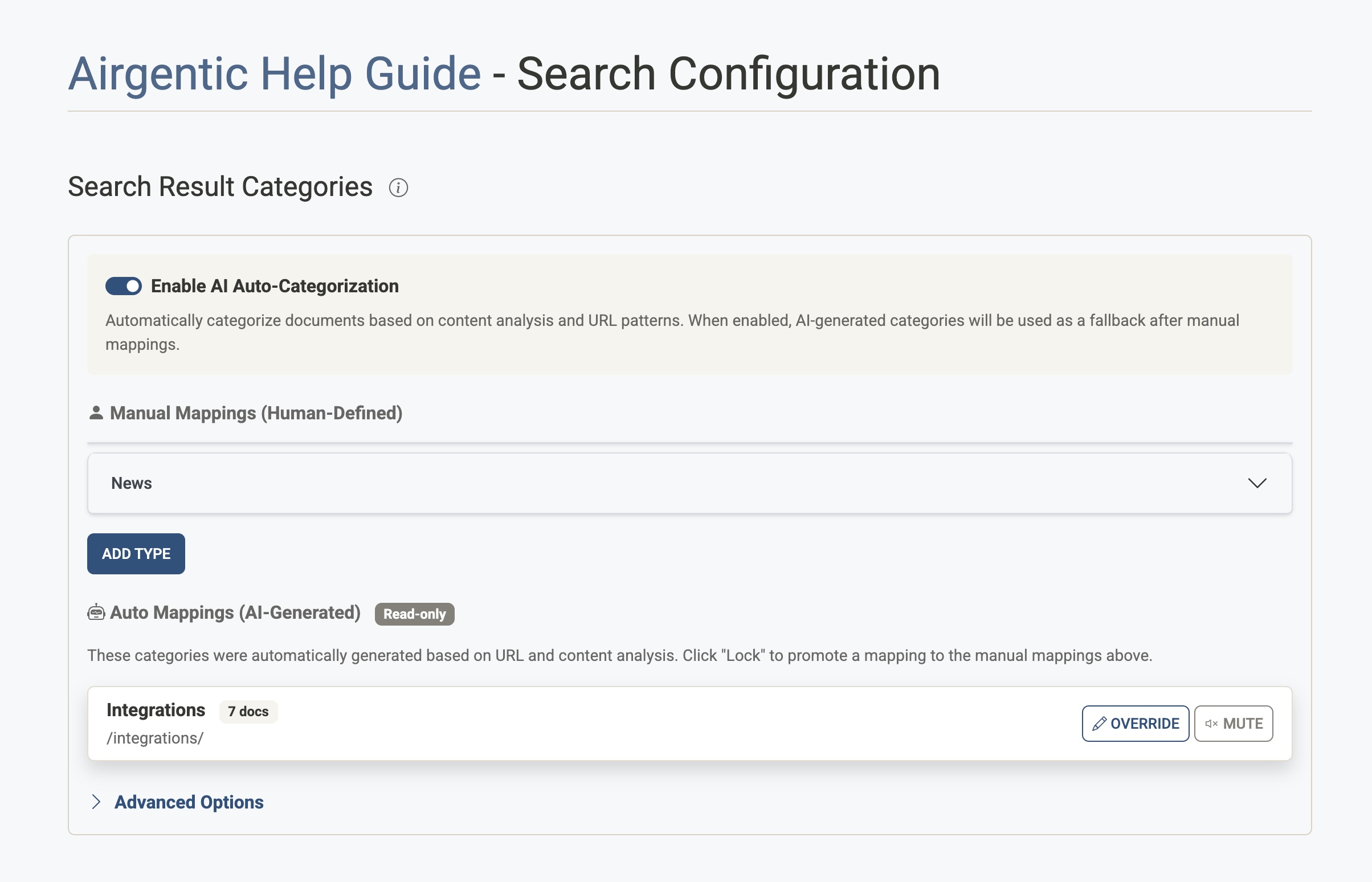
Search Result Categories
Categories let you group indexed pages into named buckets (e.g. Products, Support, News) that appear as filters or labels in search results. Each category has matching rules that determine which pages belong to it. Configure these on the Categories tab.
AI Auto-Categorization
When enabled, Airgentic analyses each page's URL and content during indexing and automatically assigns a category. AI-generated categories appear in the Auto Mappings section below the manual ones.
When disabled, the legacy URL Path Depth setting becomes available as a fallback.
URL Path Depth (Legacy)
Only shown when AI Auto-Categorization is disabled. Automatically categorises pages based on their URL path structure.
Set a number to pick the URL path segment used as the category name:
- A value of
1forhttps://example.com/services/complaints/page.html→ category Services - A value of
2for the same URL → category Complaints
Leave blank to disable URL-depth categorisation.
Manual Mappings
Manual mappings are human-defined rules evaluated in order. The first rule that matches a page's URL or metadata wins.
Default
The fallback label applied to pages that don't match any manual or auto mapping. Set a Default Type Title (e.g. General) so uncategorised pages still have a meaningful label rather than appearing blank.
Adding a Mapping
Click Add Type to create a new mapping. Each mapping has:
| Field | Description |
|---|---|
| Display Title | The category label shown to users (e.g. Products). |
| Search Boost | A ranking adjustment from −5 (demote) to +5 (promote) applied to all pages in this category. Use 0 for no change. |
| Document Age Penalty | A ranking adjustment from 0 to 5 that demotes older documents in this category. Use 0 for no effect; higher values favour newer pages more strongly. The penalty is based on each document's indexed date — pages without a date are not affected. Useful for News, Events, and other time-sensitive categories. |
| URL Contains | If any of these strings appear anywhere in the page URL, the mapping matches. Add multiple values — any match is sufficient. Entries can be reordered by drag-and-drop. |
| Metadata Contains | Matches if a specified metadata field contains a given value. Enter a field name (e.g. og:type) and a value (e.g. article). |
| Metadata Is | Matches if a specified metadata field is an exact match for a given value. |
| Metadata Matches (Regex) | Matches if a specified metadata field matches a regular expression (e.g. (?i)gazette for a case-insensitive match). |
Click Remove Type at the bottom of a mapping to delete it.
Search Boost and Document Age Penalty work together but affect ranking differently:
- Search Boost applies the same adjustment to every document in the category, regardless of age.
- Document Age Penalty reduces the score of older documents in the category, leaving recent documents relatively unchanged. The effect increases gradually over a long time window (roughly ten years), so very old pages are demoted more than pages from last year.
Both settings take effect when search results are ranked. They do not change which category a page belongs to, and they do not require reindexing.
Auto Mappings (AI-Generated)
Visible only when AI Auto-Categorization is enabled. Shows categories automatically generated during the last crawl, including how many documents each covers.
Auto mappings are read-only — they are regenerated by the AI each crawl. Two actions are available for each:
- Override — Copies the auto mapping into the Manual Mappings section so you can customise it (rename it, adjust its rules, or add a boost). Once overridden, the manual version takes precedence.
- Mute — Suppresses this auto-generated category so it is never applied to matching pages. Useful for categories the AI generates that you don't want.
Both actions require a reindex to take effect.
Advanced Options: XPath-Based Categories
Expand Advanced Options to configure XPath expressions that extract category names directly from page HTML at crawl time.
- Each XPath is evaluated against the page's HTML. The text found at the XPath becomes the category name (first letter capitalised).
- XPaths are evaluated after explicit manual mappings.
- Example:
//meta[@name='document-type']/@contentreads thedocument-typemeta tag.
Search Scopes and Filters
Scopes control the search tabs visitors see, such as All, Programs, Courses, or News.
Use Search Configuration > Scopes to choose:
- which scopes are visible
- which
page_typevalue each scope filters to - which filters appear in each scope
- the default sort for each scope
Search Fields must be created and enabled as filters before they can be shown inside a scope.
See Configuring Search Scopes.
Result Cards
Result cards control how search results are displayed, including the layout, thumbnail treatment, summary, and field badges.
Use Search Configuration > Result Cards to choose a built-in layout or create a custom structured layout for a result card. Then assign result cards to scopes on the Scopes tab.
See Configuring Result Cards and Layouts.
Curated Results (Best Bets)
Curated results let you promote a specific result to the top for a matching query. Use them for official pages, high-value tasks, or common searches where one result should always be shown first. Other search platforms call this feature best bets.
Configure curated results on the Settings tab.
Each rule includes:
- Trigger query: the query text that activates the rule.
- Match type: exact query, contains phrase, or contains all words.
- Scope: all scopes or one specific search tab.
- Position: optional. Where this result sits when several rules match the same search, where
1is first. Leave it blank to use the order of the rules on the page. - Label: the badge shown above the title on the promoted card, such as Recommended result or Best bet.
- Result type: an indexed page or a manually curated result.
An indexed page uses a URL that already exists in the search index. Airgentic fetches that indexed result and promotes it above the organic results, so it keeps its real title, summary, image, and field badges.
A curated result does not need to exist in the index. You provide the title, URL, description, optional image, and optional category yourself. This is useful for promoting a page that has not been crawled yet, or a destination on another website.
Promoted results appear on the first page of results only, and are removed from their usual position so they are never listed twice. They are promoted regardless of the sort order the visitor has chosen, so a best bet still appears first when results are sorted by date.
Things worth knowing
- Trigger queries are matched against both what the visitor typed and the query after your Search Synonyms rules have been applied, so a rule keeps working after you add a synonym.
- Matching ignores capitalisation and punctuation. Fees, fees, and fees? all match a trigger of
fees. - Individual rules can be switched off with the toggle beside the rule number, without deleting them.
- Curated result changes take effect as soon as you save, without reindexing.
Search Synonyms
Synonym rules let you modify user queries before they reach the search engine, improving recall when users phrase things differently from how the content is written.
Configure synonym rules on the Settings tab.
The Settings tab also includes Search AI Answer, which controls whether the search UI may show an AI-generated answer above search results. Turning this off keeps normal search results available, but suppresses generated answers in the search experience.
Add
When a query contains term X, also search for term Y (in addition to X). Use this for abbreviations, alternative spellings, or related terms.
- Example:
X = "FAQ"→Y = "frequently asked questions"
Replace
When a query contains term X, replace it with term Y. X is removed from the query and Y is used instead.
- Example:
X = "T&Cs"→Y = "terms and conditions"
Delete
Remove a term from all queries. Useful for filtering out noise words specific to your domain.
- Example: delete
"pdf"so searches for "application form pdf" become "application form".
Saving
Click Save Configuration. If you have changed category matching rules (Manual Mappings or XPath-Based Categories), a confirmation dialog will appear with an option to Initiate index update now. Leave this checked to immediately start reindexing so the new categories take effect. Uncheck it if you want to batch changes and trigger reindexing manually later.
Changes to Search Boost, Document Age Penalty, Curated Results, Search Synonyms, and Group page versions take effect without reindexing.