Help
Use the Conversational Intelligence screen in the admin console to configure the automated topic clustering and category classification that powers Taxonomy Categories and Semantic Themes.
This guide covers how to create taxonomies (your own category structures) and configure the topic/theme clustering that automatically discovers what customers are asking about.
Accessing the Screen
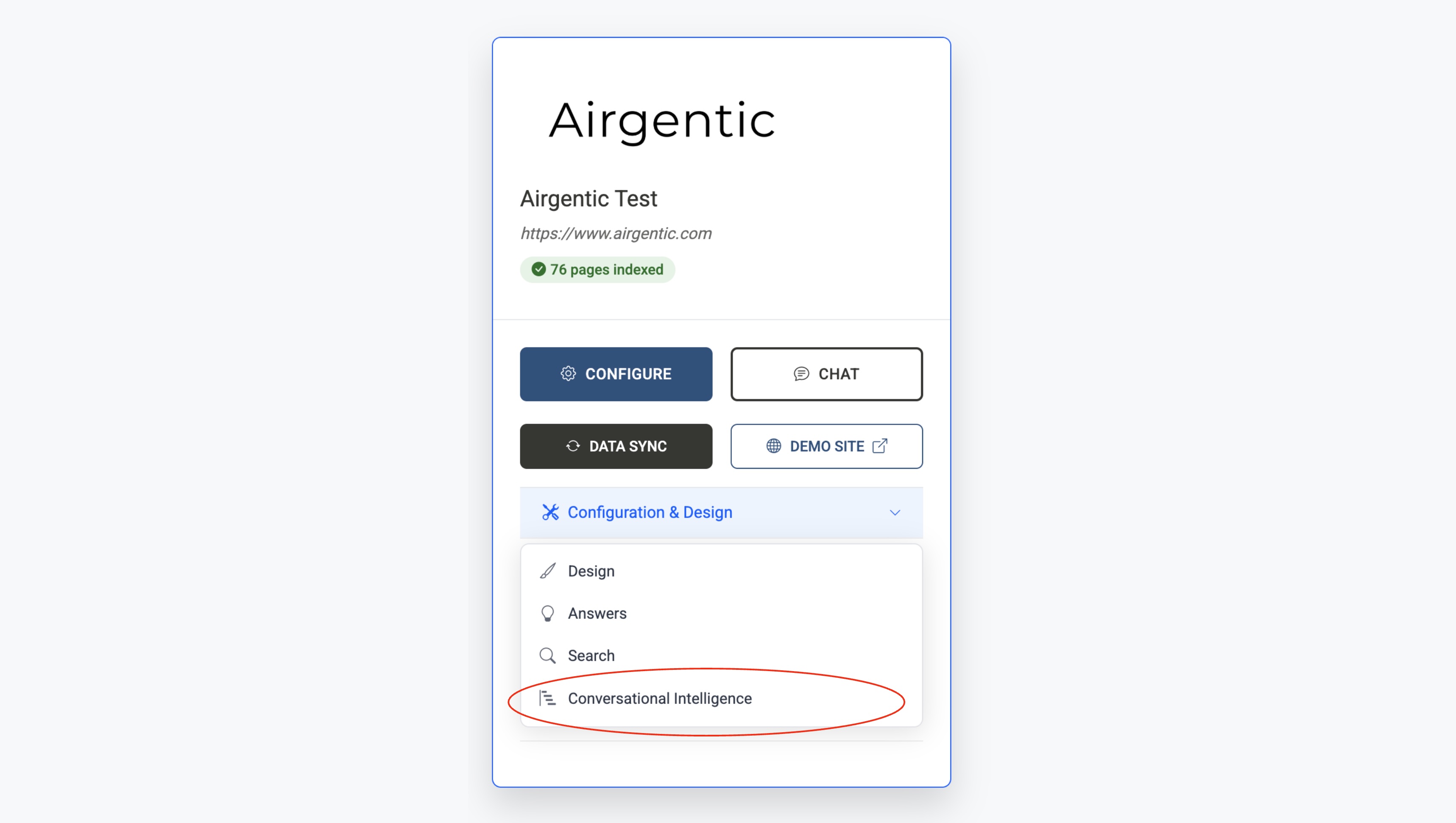
In the admin menu, open Configuration & Design → Conversational Intelligence. This screen has two main tabs:
- Topics & Themes — Configure and run the automated clustering analysis
- Taxonomies & Categories — Define your own category structures for governed classification
Topics & Themes Tab
The Topics & Themes tab is where you configure and monitor the automated clustering that discovers what customers are asking about.
Enabling Clustering
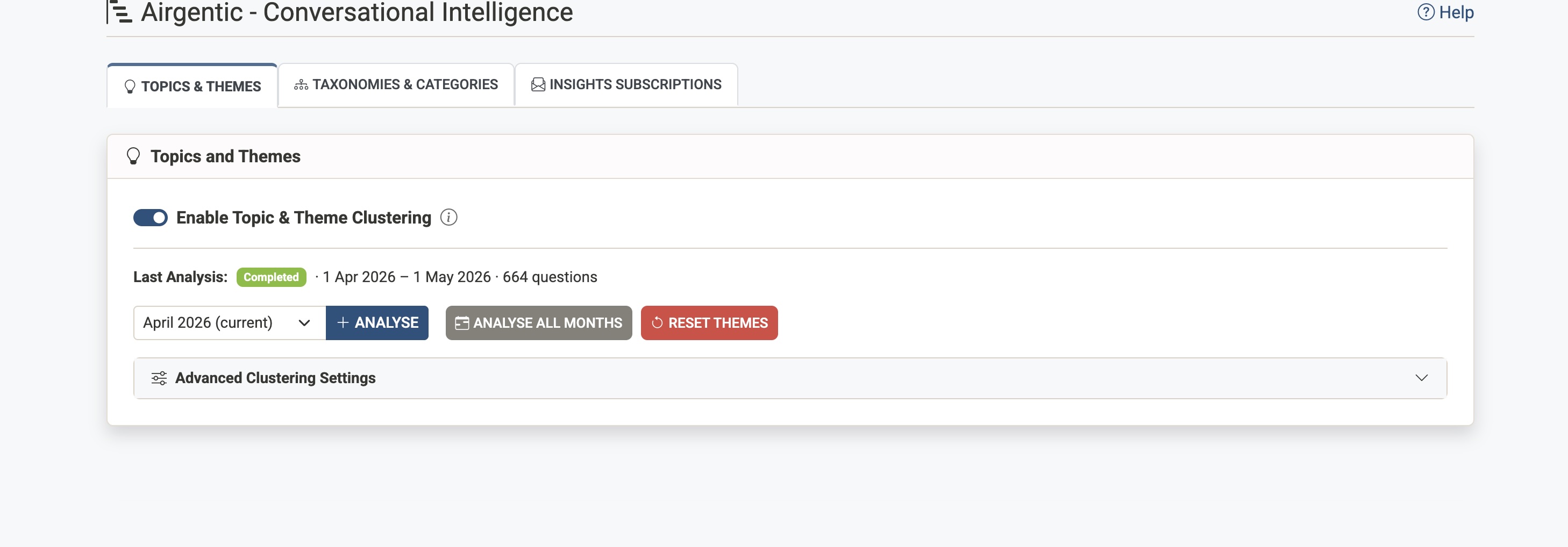
The Enable Topic & Theme Clustering toggle controls whether clustering runs for this service:
- Enabled — Questions are automatically clustered into topics and themes after each scheduled crawl completes
- Disabled — Clustering is paused; no new analysis runs will occur
This setting saves automatically when changed. Disabling clustering does not delete existing themes — it simply stops new analysis runs. You can re-enable it at any time.
Note: Clustering is tied to your crawl schedule. When a scheduled crawl completes successfully, clustering automatically runs if enabled. This ensures clustering always has the freshest content available. If you don't have a crawl schedule configured, you can trigger analyses manually.
Analysis Status
Below the toggle, you'll see:
- Last Analysis — Status badge (Completed/Running/Failed) with the date range and question count. If the most recent run failed, a plain-language explanation is shown (for example, not enough unique questions).
- Month readiness — When you select a month, the page checks how many unique questions are available and warns you before you start if there is not enough data.
- Analysis Month — Dropdown to select which month to view or analyse
Clustering requires at least 10 unique questions in the selected month (after quality filtering). Services with very low conversation volume will see a failed status or a pre-run warning until more data is collected.
Running a New Analysis
Click + New Analysis to trigger clustering for the selected month. This is useful when:
- You've just set up the service and want initial themes
- You've made significant changes to your content
- You want to refresh the current month's preliminary data
Resetting Themes
Click Reset Themes to delete all existing themes and clustering history. After resetting, run a new analysis to create fresh themes based on your current data.
Warning: This action cannot be undone.
Advanced Clustering Settings
Expand the Advanced Clustering Settings section to adjust clustering behaviour. For most use cases, the defaults work well.
| Setting | Description | Default |
|---|---|---|
| Min Cluster Size | Smallest number of similar questions to form a cluster | 8 |
| Min Samples | How many similar neighbours a question needs | 5 |
| Cluster Merge Distance | Distance threshold for merging similar clusters (0 = no merging) | 0.05 |
| Cluster Selection | EOM (Balanced) finds stable clusters; Leaf keeps smallest clusters | EOM |
| Distance Metric | How similarity is measured (Euclidean or Cosine) | Euclidean |
| Dimensionality Reduction (UMAP) | Reduces embedding dimensions before clustering | Enabled |
Minimum data: At least 10 unique questions per month are required before clustering can run. The Conversational Intelligence screen shows a readiness check when you select a month, and blocks analysis if the threshold is not met.
Warning: Changing these from defaults will likely have a detrimental impact on clustering quality unless you have a specific reason to adjust them.
These settings apply to the next analysis run.
Taxonomies & Categories Tab
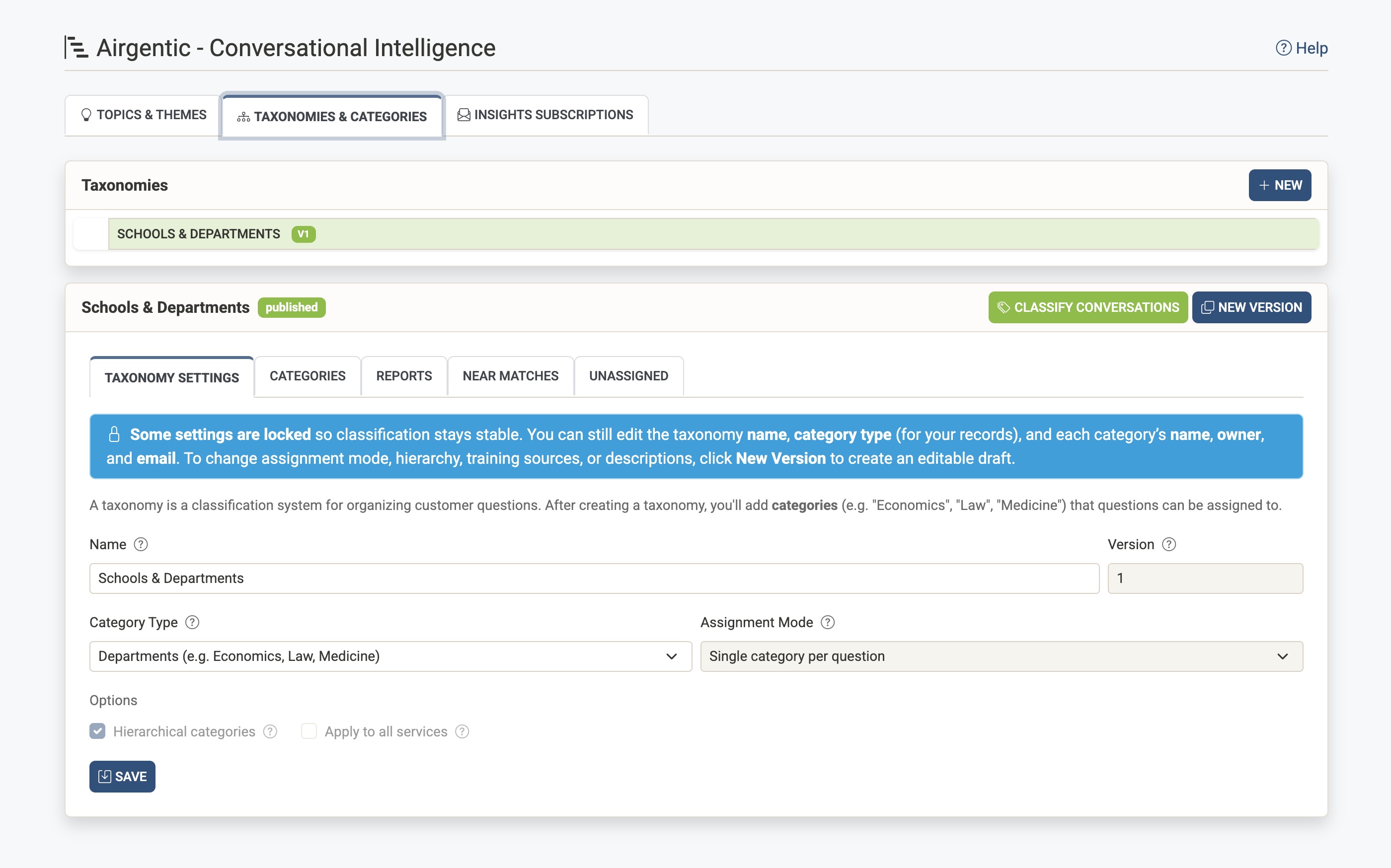
A taxonomy is a classification system you define to organise customer questions according to your business structure. Unlike themes (which are discovered automatically), taxonomies give you governed, consistent categories that align with your organisation.
Why Use Taxonomies?
- Business alignment — Categories match your departments, products, or service areas
- Ownership — Assign owners to categories for reporting and accountability
- Consistency — The same categories apply across time, making trends comparable
- Multiple views — Create different taxonomies for different stakeholders (e.g., by department vs. by enquiry type)
Creating a Taxonomy
- Click New in the Taxonomies card
- Configure the taxonomy settings:
| Setting | Description |
|---|---|
| Name | A human-readable name shown in reports (e.g., "Schools and Departments") |
| Category Type | What kind of categories this contains — helps organise your taxonomies |
| Assignment Mode | Single assigns each question to exactly one category (use for routing). Multiple allows questions to have several categories (use for tagging) |
| Hierarchical categories | Enable if categories have parent-child relationships (e.g., Department > Team) |
| Apply to all services | When checked, the taxonomy applies to all services in your account |
- Click Save to create the taxonomy in draft status
Category Types
Choose the type that best describes your categories:
- Departments — Organisational units (e.g., Economics, Law, Medicine)
- Topics — Subject areas (e.g., Billing, Returns, Shipping)
- Products — Product or service lines (e.g., Widget A, Service B)
- Intents — User goals (e.g., Buy, Ask, Complain)
- Regions — Geographic areas (e.g., North, South, International)
- Priorities — Urgency levels (e.g., Urgent, Normal, Low)
- Custom — Define your own type
Adding Categories
After creating a taxonomy, switch to the Categories tab to add your classification labels.
- Click Add Category
- Fill in the category details:
| Field | Description |
|---|---|
| Label | The display name (e.g., "Undergraduate Admissions") |
| Parent Category | Optional — nest under another category to create hierarchy |
| Description | What questions belong here — helps with training |
| Owner | The person or team responsible for this category |
| Owner Email(s) | Email addresses for notifications (comma-separated) |
| Status | Active categories are used; Inactive are hidden but preserved |
| Sort Order | Controls display order (lower numbers appear first) |
- Click Save Category
Training Sources
Each category can have training sources that help the AI understand what belongs there. Click on a category row to see and manage its training sources.
Training source types:
| Type | Description |
|---|---|
| Fetch pages with URL prefix | Retrieves pages from your indexed content matching a URL pattern. The system extracts relevant text to build training data. |
| Text Brief | Freeform description of what the category covers. Useful when URL-based training isn't available. |
| Exemplar Question | A sample question that should match this category. Add several variations for best results. |
| Negative Exemplar | A question that should NOT match this category. Helps distinguish similar categories. |
The more training data you provide, the more accurate the classification becomes.
Publishing a Taxonomy
Taxonomies start in Draft status, allowing you to refine them before use.
When ready:
- Ensure all categories have been added
- Review your training sources
- Click Publish
The system will:
1. Build training data from your sources (progress shown in the header)
2. Generate semantic embeddings for each category
3. Make the taxonomy available for classification
Once published, certain settings become locked to maintain classification stability. A notice will appear explaining which settings can still be edited:
- Editable: Taxonomy name, category type (for your records), and each category's name, owner, and email
- Locked: Assignment mode, hierarchy, training sources, and descriptions
To change locked settings, you'll need to create a new version.
Creating a New Version
If you need to change locked settings on a published taxonomy:
- Click New Version to create an editable draft based on the published taxonomy
- Make your changes
- Publish the new version
The new version will replace the previous one for future classifications.
Running Classification
Once published, click Classify Conversations to:
- Classify all unclassified questions against your taxonomy
- Optionally re-classify all questions (check "Re-classify all questions")
Classification also runs automatically on a daily schedule (04:00 UTC).
Quality and Review
Each taxonomy has several tabs for monitoring performance and reviewing classifications.
Reports Tab
The Reports tab shows quality metrics and assignment summaries.
Quality Metrics
| Metric | Description |
|---|---|
| Average confidence | Mean confidence score across all classifications |
| Assignment rate | Percentage of questions assigned to at least one category |
| No human override | Percentage of assignments that haven't been manually corrected |
| Category clarity | How distinct categories are from each other |
| Cluster purity | How consistently clusters map to single categories |
| Impure clusters | Number of clusters that span multiple categories |
Assignment Summary
Shows how many questions have been assigned to each category, broken down by:
- Suggested — Automatically classified, pending review
- Below Threshold — Best match, but confidence didn't meet the threshold
- Confirmed — Human-verified as correct
- Rejected — Human-corrected to a different category
- Total — Sum of all assignments
Categories Tab
Lists all categories in the taxonomy with:
- Label — Category name
- Parent — Parent category (if hierarchical)
- Status — Active or Inactive
- Order — Display sort order
- Training Data — Number of training examples
Click the action icons to view questions, review assignments, or edit the category.
Near Matches Tab
Shows questions where two or more categories scored nearly identically (within 4%). The top scorer was assigned, but you may want to review these to:
- Confirm the correct assignment (click Confirm)
- Mark as incorrect (click Doesn't Fit)
- Change the assigned category using the dropdown
These borderline cases reveal where categories overlap and can be used as training examples to improve accuracy.
Unassigned Tab
Shows questions that didn't meet the confidence threshold for any category. Each item displays:
- The question text
- Suggested categories — Top matches with confidence scores
- Assign to — Dropdown to manually assign
These may represent:
- Gaps in your taxonomy
- Questions too generic to classify
- New topics you haven't accounted for
Click Confirm to assign a question to the selected category.
How Clustering Works
Each month, the system:
- Collects all questions from conversations
- Uses AI to identify semantically similar questions
- Groups them into clusters — collections of very similar questions
- Maps clusters to persistent themes for tracking over time
This happens automatically after each scheduled crawl completes, but you can also trigger manual analyses from the Topics & Themes tab.
Note: Because clustering runs monthly, date range filters on Semantic Themes may not be exact. Clusters represent the full month's data regardless of the date range selected. Taxonomy Categories are assigned per question, so those counts follow your selected dates.
Automatic Scheduling
Clustering and classification run automatically based on your crawl schedule:
Crawl-Triggered Clustering
When a scheduled crawl completes successfully, the system automatically:
- Checks if clustering is enabled — Via the toggle on this screen
- Runs clustering — Groups new questions into clusters and maps them to themes
- Limits to once per day — If a service is crawled multiple times daily, clustering only runs after the first successful crawl
This ensures clustering always has the freshest indexed content available.
Daily Classification
| Time (UTC) | Process |
|---|---|
| 04:00 | Classification — Assigns questions to published taxonomy categories |
Classification runs daily at 04:00 UTC for all services with published taxonomies. This means new questions are typically classified by early morning each day.
Manual Runs
You can also trigger clustering or classification manually at any time:
- Clustering — Click + New Analysis on the Topics & Themes tab
- Classification — Click Classify Conversations on a published taxonomy
Best Practices
Designing Taxonomies
- Start with your org structure — Categories should reflect how you naturally think about your business
- Keep it manageable — Start with 10-20 categories; you can always add more
- Use hierarchy sparingly — Deep hierarchies can be harder to manage
- Write clear descriptions — Help the AI understand what belongs in each category
- Add training examples — A few exemplar questions significantly improve accuracy
Improving Classification Accuracy
- Review near-matches — These borderline cases reveal where categories overlap
- Add negative exemplars — Help distinguish similar categories
- Check unassigned questions — May reveal gaps in your taxonomy
- Provide feedback — Use thumbs up/down on classified questions to train the system
Monitoring Themes
- Watch for emerging themes — New clusters may indicate new issues or opportunities
- Track theme trends — Declining themes may indicate successful interventions
- Review theme descriptions — AI-generated labels usually capture the intent well
- Use themes alongside taxonomies — Themes discover what you didn't anticipate; taxonomies track what you planned for
Related Documentation
- Taxonomy Categories — Governed category view in Insights
- Semantic Themes — Discovered topic view in Insights
- Voice of Customer — How to interpret the audience report on the Demand tab
- Customer Service Insights — Overall insights overview
- Insights Overview — Getting started with analytics